ONE STEP AT A TIME
Give your AI a way to share your game.
Choose your AI below. We will show you where to look, what you need, and which connection works with PlayPrompt today.
Use PlayPrompt now: connect on your computerWhat is MCP?
Think of MCP as a plug that lets your AI use another tool. PlayPrompt's plug can pick up your game files, upload them, and return a link for people to play.
Today, PlayPrompt connects on your computer
The current PlayPrompt MCP runs on your computer using a connection called stdio. It does not yet have an online MCP address to paste into these browser forms. Follow the local setup below to use it now. The REST API address is not an MCP address.
Use PlayPrompt now: connect on your computer ↓ChatGPT · Secure MCP Tunnel
Advanced option: ChatGPT documents a Secure MCP Tunnel that can reach a local stdio server. It needs its own setup, credentials, and account permissions. This route has not been tested with PlayPrompt.
Read OpenAI's tunnel guide ↗01 — MCP
Start with the AI you use
These browser guides show connection menus and feature availability. A screenshot does not mean PlayPrompt is already connected.
Claude
Claude has a place to add a custom connector. You can look at the form now; connecting PlayPrompt will need an online MCP service first.
Before you start
- Free accounts allow one custom connector. Pro, Max, Team, and Enterprise also support custom connectors.
- A team or organization may need its owner to add the connector first.
- Claude's published interface-language list does not include Traditional Chinese. Use the clearly marked English reference when needed.
Follow these steps
Open Connectors
Open Customize → Connectors, then choose + Add.
Open the custom connector form
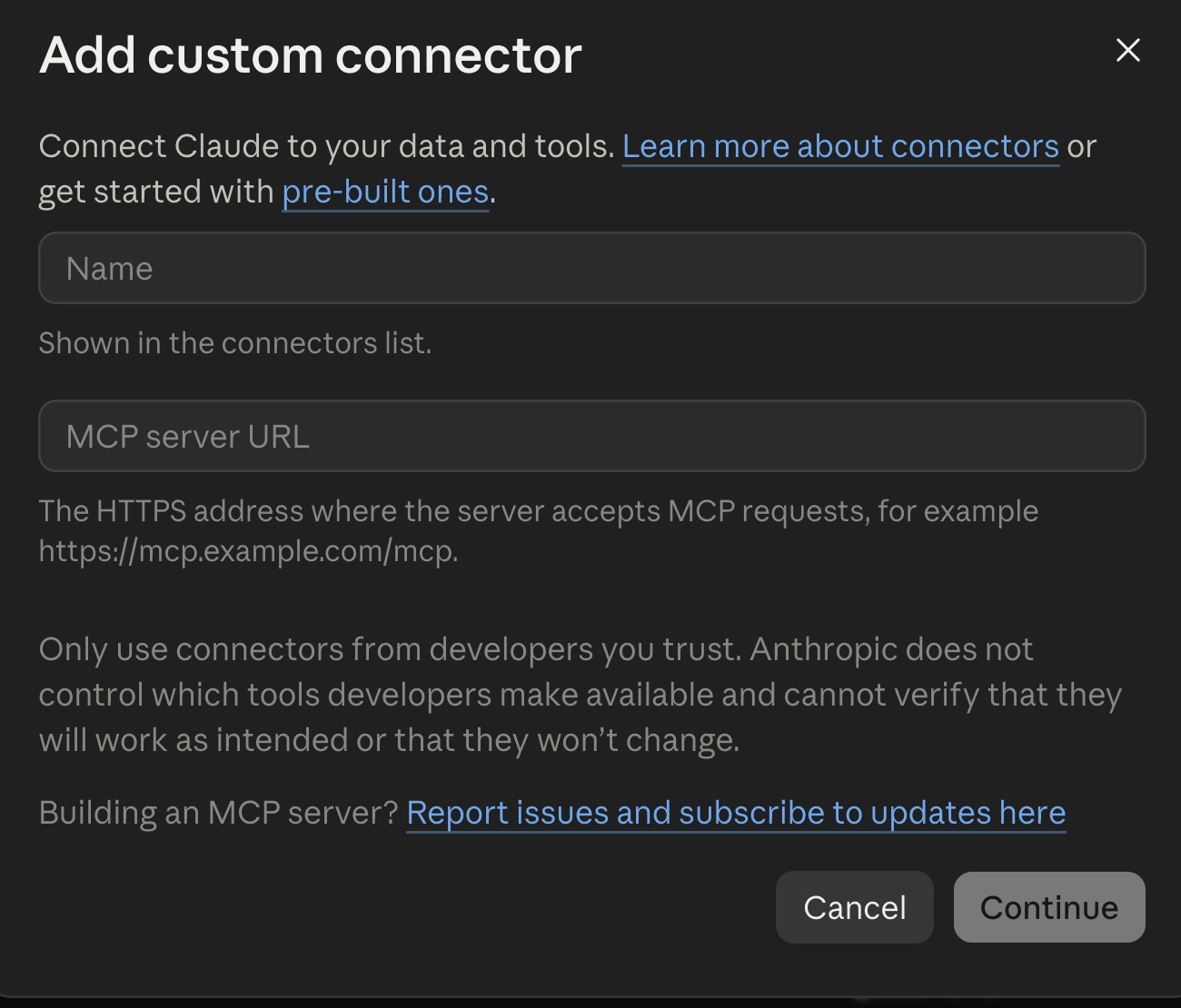
Choose Add custom connector. Find the Name and MCP server URL boxes in the form.
Check the address before continuing
For an available service, fill in Name and its real HTTPS address under MCP server URL, then choose Continue and follow its sign-in steps. PlayPrompt has no online MCP address yet, so stop here for now. Never put your API key in this form.

ChatGPT
ChatGPT can add an MCP tool through developer mode. An ordinary online connection needs an MCP address; its advanced tunnel can also reach a server on your computer.
Before you start
- The official guide lists Plus, Pro, Business, Enterprise, and Education web accounts. Workspace permissions may limit access.
- Use a working online MCP service, or separately configure Secure MCP Tunnel. The current PlayPrompt server has no online address.
- The tutorial never asks you to paste a PlayPrompt API key into ChatGPT.
Follow these steps
Open Plugins
Open Plugins in the ChatGPT sidebar. If that menu is missing, check access to Developer mode under Settings → Security and login. A workspace administrator may need to allow access.
Open New Plugin
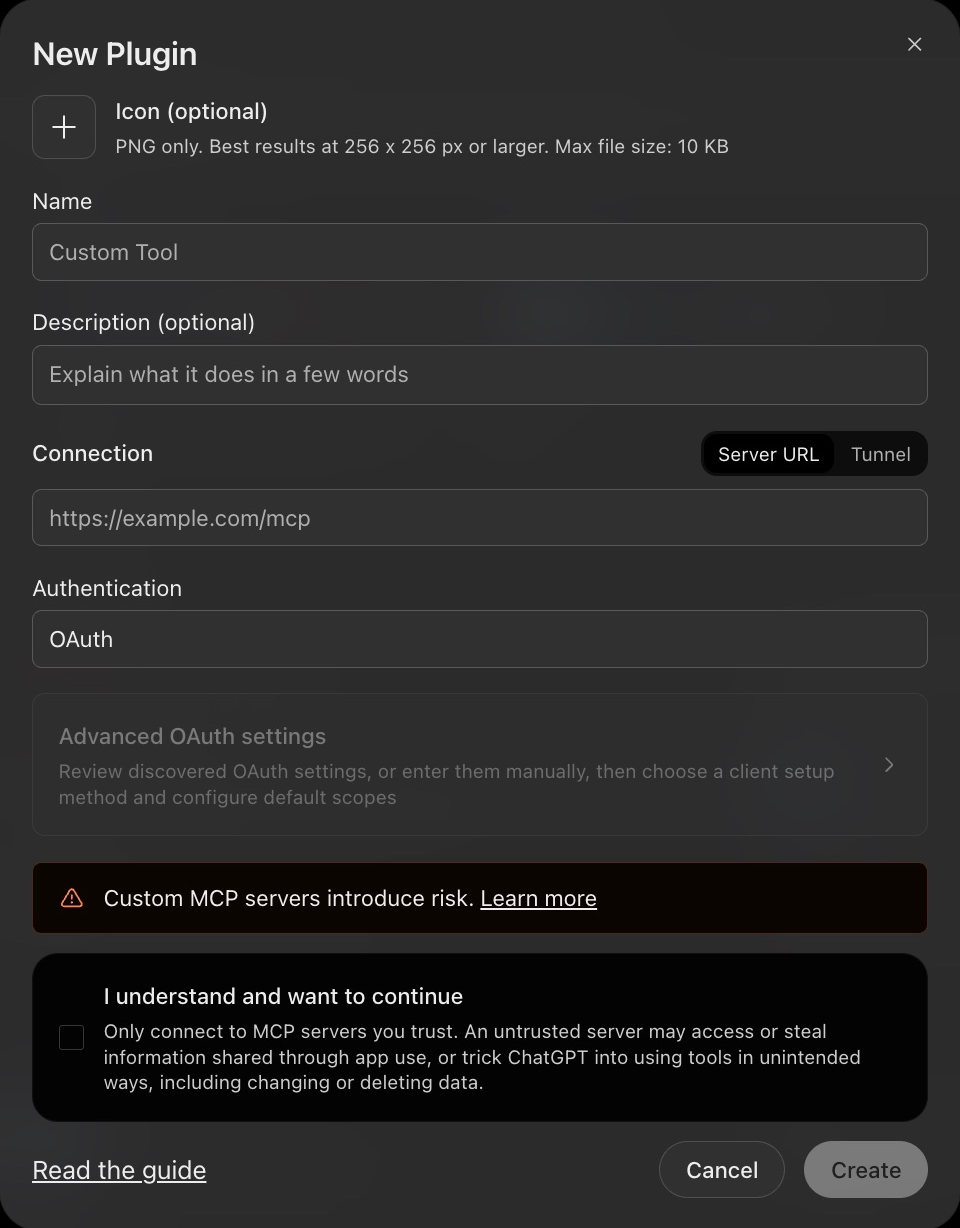
Choose Add → Create MCP App. In New Plugin, fill in Name. Description (optional) can be left empty.
Choose a real connection
Under Connection, choose Server URL for a real HTTPS MCP address. Use Tunnel only after setting one up. Follow the service’s Authentication instructions. PlayPrompt has no online MCP address yet: stop here for PlayPrompt, and never put its API key in the OAuth fields.
Create it only when ready
For a trusted service with a working address, read the notice, select I understand and want to continue, then choose Create. Review its tools, install the personal plugin, and select it with @ in Work. These pictures show the form, not a completed PlayPrompt connection.
Gemini
Gemini's custom apps can connect to an MCP server. This feature has tighter language and account limits than ordinary Gemini chat.
Before you start
- The current official guide requires a personal Google account, age 18 or over, US location, and Keep Activity turned on.
- Custom apps are English-only and are not available for work or school accounts. The inspected account did not show the custom-app menu; the reason was not established.
- You still need an online MCP server address. Gemini CLI is a different app and can use local MCP instead.
Follow these steps
Check Connected Apps
Open Settings → Connected Apps. If needed, open Personal Intelligence first. Look for Custom apps. If it is missing, stop here and use “Use PlayPrompt now: connect on your computer” below. You can also read the official eligibility rules.
Only if Custom apps is available
Continue only if your account shows Custom apps and you have a working MCP address for that service. Choose Add a custom app or its address field, enter the real MCP server URL, then choose Next. PlayPrompt has no such address yet, so stop here for PlayPrompt.
Only after adding an available service
Follow that trusted service’s sign-in steps. Once it connects, use @ to select it. Do not turn on account history or change your region just to imitate the tutorial.
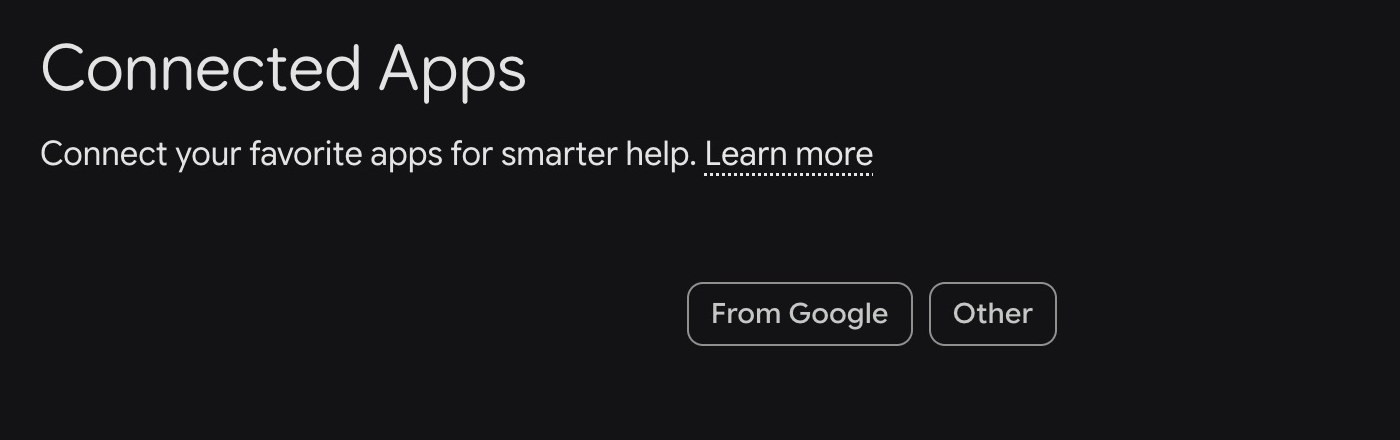
Connected Apps reference from the inspected Gemini account, captured in English. No Custom apps section or MCP URL field was visible. This is an availability screen, not an MCP setup form. Check official eligibility; do not change account settings or region just to reproduce this screen.
Grok
Grok supports custom MCP connectors on its website. The address must lead to an MCP server that Grok can reach over the internet.
Before you start
- Grok's official guide says connectors are available to all users.
- Business and Enterprise teams need an administrator to make the connector available first.
- A localhost address will not work. The current PlayPrompt MCP has no public server URL.
Follow these steps
Open Connectors
Go to grok.com/connectors.
Open the custom connector form
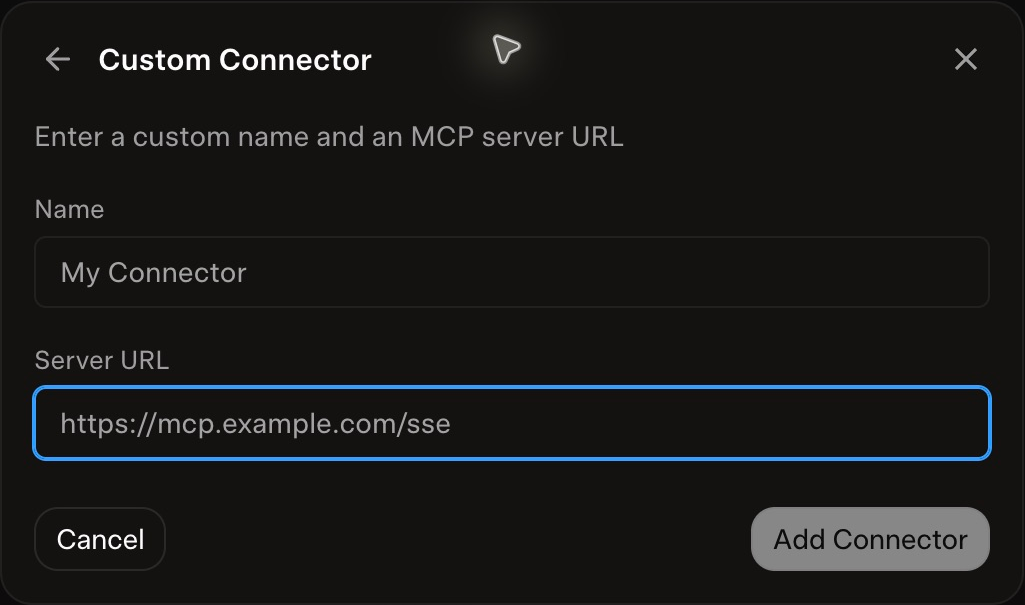
Open the new-connector menu and choose the custom option. The official English guide calls these New Connector → Custom. The form shown below is titled Custom Connector. Ask your team administrator if this option is missing.
Fill in both boxes
For an available service, fill in Name and its public MCP address in Server URL, then choose Add Connector and follow any sign-in steps. PlayPrompt has no public MCP address yet, so stop before submitting for PlayPrompt.
02 — ON YOUR COMPUTER · STDIO
Use PlayPrompt now: connect on your computer
This example uses Docker and Cursor, an AI coding app that can start a local MCP server. Other compatible local apps, such as Gemini CLI, need their own settings. This is separate from the browser forms above.
Start the playground
Start Docker. In the PlayPrompt project folder, run the setup commands below. Keep Docker running. Your game folder should contain index.html and the files the game needs.
localhost:3000 ↗Run in the project folderdocker compose up --build -d docker compose --profile tools build mcpInclude only the game: HTML, CSS, JavaScript, images, or WASM. Put index.html at the top of a folder or ZIP. Limits: 100 MiB ZIP, 500 MiB unpacked, 5,000 files. Server code, external API calls, Web Workers, and Service Workers are not supported.
Make your private API key
Open the local PlayPrompt at localhost:3000. Sign in with your local test account, open its creator console, and make an API key there. This key must belong to the local server running in Docker. Save it in your private local settings; never send it in an AI message.
Open the local test consoleWith the local development setup, sign-in messages go to the test mailbox. Open the message link, then finish signing in. This is a development mailbox, not your personal inbox.
Open the local test mailbox ↗Tell the local app where to find MCP
Create playprompt-mcp.env outside your game folder and save the key and game-folder path there. Add the Docker stdio example below to Cursor’s ~/.cursor/mcp.json. Replace every example path with your own full path. Keep any existing servers.
In mcpServers, add only the playprompt entry if other servers already exist. envFile belongs to Cursor; --env-file tells Docker Compose which settings file to read. Point both to the same private file and keep it out of Git.
Private settings · keep outside your game folder · playprompt-mcp.envPLAYPROMPT_API_KEY=YOUR_PRIVATE_KEY_FROM_THE_CONSOLE PLAYPROMPT_GAME_DIR=/ABSOLUTE/PATH/TO/YOUR/GAMEExample local MCP configuration · ~/.cursor/mcp.json{ "mcpServers": { "playprompt": { "type": "stdio", "command": "docker", "args": [ "compose", "--project-directory", "/ABSOLUTE/PATH/TO/promptopia.games", "--env-file", "/ABSOLUTE/PATH/TO/playprompt-mcp.env", "run", "--rm", "-T", "--no-deps", "-e", "PLAYPROMPT_API_KEY", "mcp" ], "envFile": "/ABSOLUTE/PATH/TO/playprompt-mcp.env" } } }PLAYPROMPT_GAME_DIR is the full path to the folder you choose on your computer. Docker mounts only that folder, read-only, at /games. For a file inside it, use /games/game.html or /games/build.zip.
Cursor's official local MCP guide ↗Check the four tools
Reload MCP in your AI app. Look for deploy_game, get_deployment, list_games, and search_game_tips. Ask it to list your games first. With Docker, the selected game folder is called /games inside the container.
deploy_gameget_deploymentlist_gamessearch_game_tips
Share your first game
Use the example request below. PlayPrompt checks the files and publishes the game if they pass. Open the returned play link. If the status is processing, ask for the deployment status instead of uploading again.
Say this to your connected local AI app
Publish the game in /games to PlayPrompt. Call it Space Runner. Give me the play link when it is ready.
deploy_game{ "local_path": "/games", "title": "Space Runner" }Updating a game? Include its game_id so the same link gets the new version. Without a game_id, you are asking for a new game.
deploy_game · game_id{ "local_path": "/games", "game_id": "YOUR_GAME_ID" }
Need help making the game?
Ask search_game_tips for ideas about images, audio, effects, browser testing, and game rules. It searches a bundled reference without reading your game files. Its source tips are currently in Korean; you can ask your AI to explain them in your language.
{
  "query": "VFX",
  "limit": 5
}
For developers: the REST API
MCP calls the PlayPrompt REST API to manage your own games. REST requests put the API key in the Authorization header, never in the URL. The REST address is not an MCP endpoint and cannot be pasted into a browser connector form. Set PLAYPROMPT_API_KEY in your terminal environment before running this example.
curl http://localhost:3001/v1/games \
  -H "Authorization: Bearer $PLAYPROMPT_API_KEY"
Keep your secret key to yourself
An API key is like a private door key. Never paste it into an AI chat, a screenshot, a website address, or your game files. Save it only in the local MCP settings described below. Tutorial pictures should show only the menu or form you need, with personal details removed.
Stuck? Start here.
Which address should I paste into the browser?
PlayPrompt does not yet publish an online MCP address. Do not paste localhost, the REST API address, or an invented /mcp URL. Use the local connection for now; ChatGPT's separate tunnel option needs advanced setup.
Why is a button missing or in English?
Provider menus depend on language, plan, region, and account permissions. Gemini custom apps are English-only, and Claude does not currently list a Traditional Chinese interface. Use the translated instructions and check the official guide.
Why can the local tool not read my game?
Check that Docker is running and your selected game folder exists. In Docker, use /games. Put index.html at the top of the game folder or ZIP. Files outside the allowed folder cannot be read.
I lost my key or showed it to someone. What now?
Revoke that key in the creator console, make a new one, and update your private local settings. Never post the replacement in a chat or screenshot.
Provider guidance checked on September 29, 2026. Account menus may change.